What SMS does #
SMS lets your team text candidates and client contacts from Shortlists, using a phone number that belongs to your business rather than anyone's personal mobile.
- Text from a candidate's or contact's record, with templates, placeholders for details like their name, or a draft written for you.
- Replies arrive in the SMS inbox and on the person's record, and whoever handles the conversation gets an email.
- The number and its conversations belong to the workspace, so nothing is lost when someone moves on.
1. Before you start #
Three things are worth knowing before anyone fills in the setup form.
1.1 Who does what #
| Who | What they do |
|---|---|
| A workspace admin | Fills in the setup form with your business details and chooses your numbers. Later, decides who sees conversations and who can send from each number. |
| The workspace owner | Confirms SMS for the workspace, and adds or removes numbers, because those change your bill. If the owner is also the admin, they do both. |
| Recruiters | Text candidates and contacts, and reply from the SMS inbox. Nothing to set up. |
1.2 One number per country #
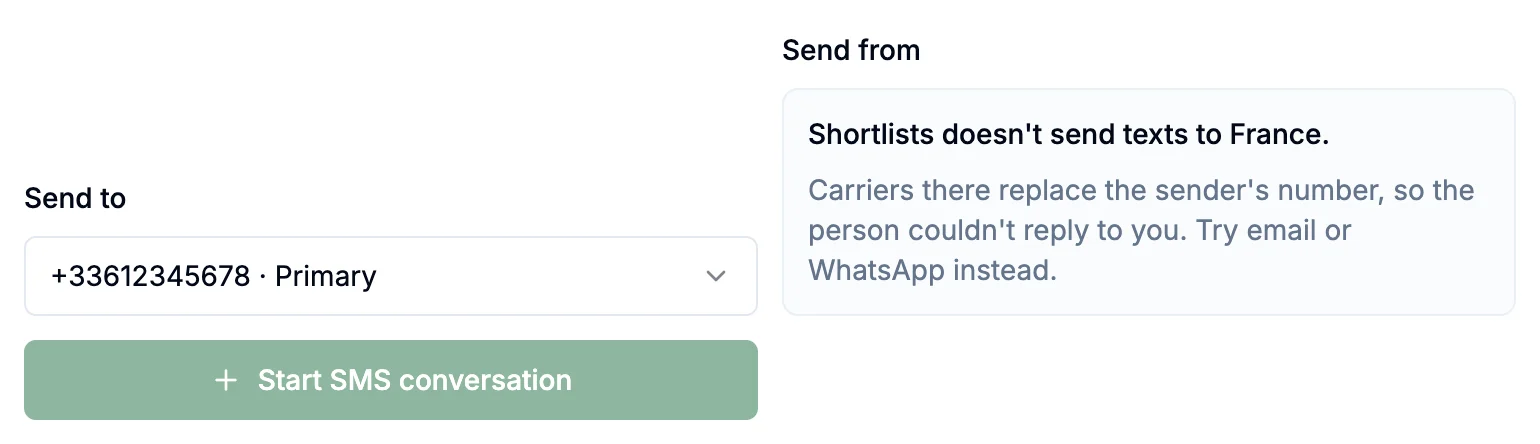
This is the part that catches people out. A number can only text mobiles in its own country. To text UK candidates you need a UK number, and to text US candidates you need a US number. When you send, Shortlists offers the number that can reach them.
UKA UK number
- Texts UK mobiles (+44)
- Can't text US mobiles
USA US number
- Texts US mobiles (+1)
- Can't text UK mobiles
OtherOther countries
- Not available yet
- Use email or WhatsApp instead
When a text crosses a border, the networks in most countries replace the sender's number. The text may still arrive, but from a different number, so the person can't reply to you and you would never know. In the United States, networks only carry business texts from US numbers registered with them. Rather than send texts nobody can answer, Shortlists only texts countries where replies come back to you.
You never have to work this out yourself. If a candidate's mobile is in a country you don't have a number for, the SMS panel tells you before you write anything.
A number saved without a code, like 07700 900123, is read using your workspace's default phone region in Account Settings. Numbers from other countries need their + code, for example +1 312 555 0182.
1.3 Permission to text #
Only text people who have agreed to hear from you by text. Having someone's number is not the same as permission.
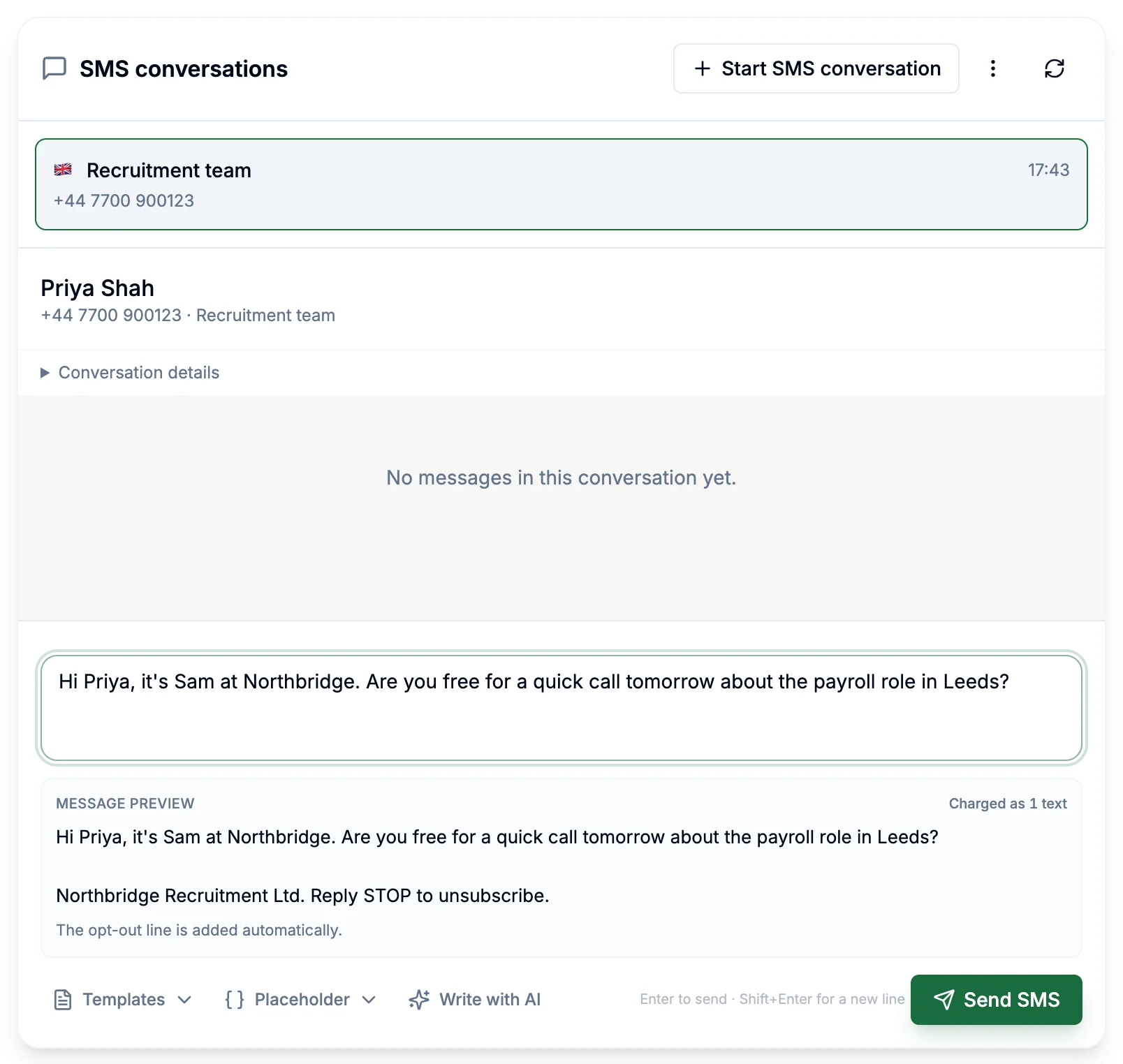
- Your first text to someone ends with an opt-out line naming your business, for example "Northbridge Recruitment Ltd. Reply STOP to unsubscribe." Shortlists adds it for you, and adds it again if you haven't texted that person for 30 days.
- If someone replies STOP, Shortlists stops anyone texting them. If they change their mind, they can reply START.
- For US mobiles you record how the person agreed before your first text. See 5.2 Texting someone in the US.
2. Set up SMS #
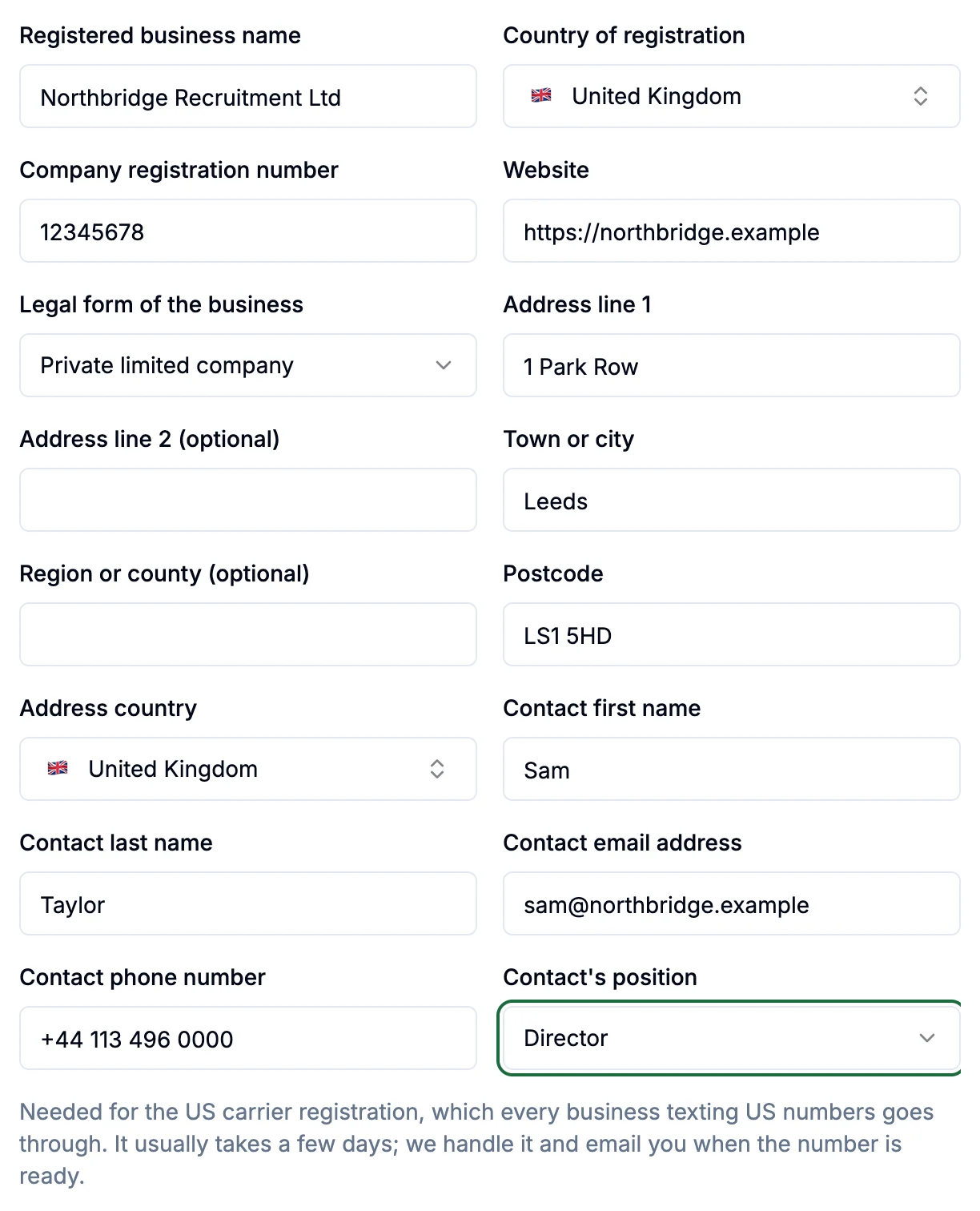
An admin does this once for the whole workspace. It takes about five minutes with your company details to hand. You'll need:
- your registered business name and company registration number;
- your business address and website;
- a contact person's name, email address and phone number;
- for a US number, also the legal form of the business (for example private limited company) and the contact's position.
-
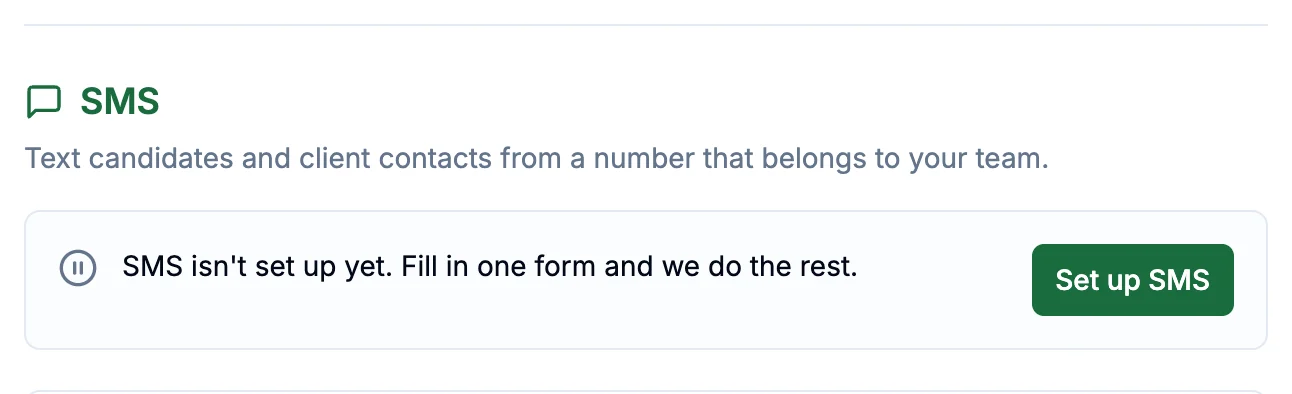
In Shortlists, click Account Settings at the bottom of the left-hand
menu and scroll to SMS. Click Set up SMS.
-
Fill in your business details. Use your registered name and company
number exactly as they appear on the official register (Companies House in the UK): the
networks check them, and a mismatch is the most common reason a registration comes back.
-
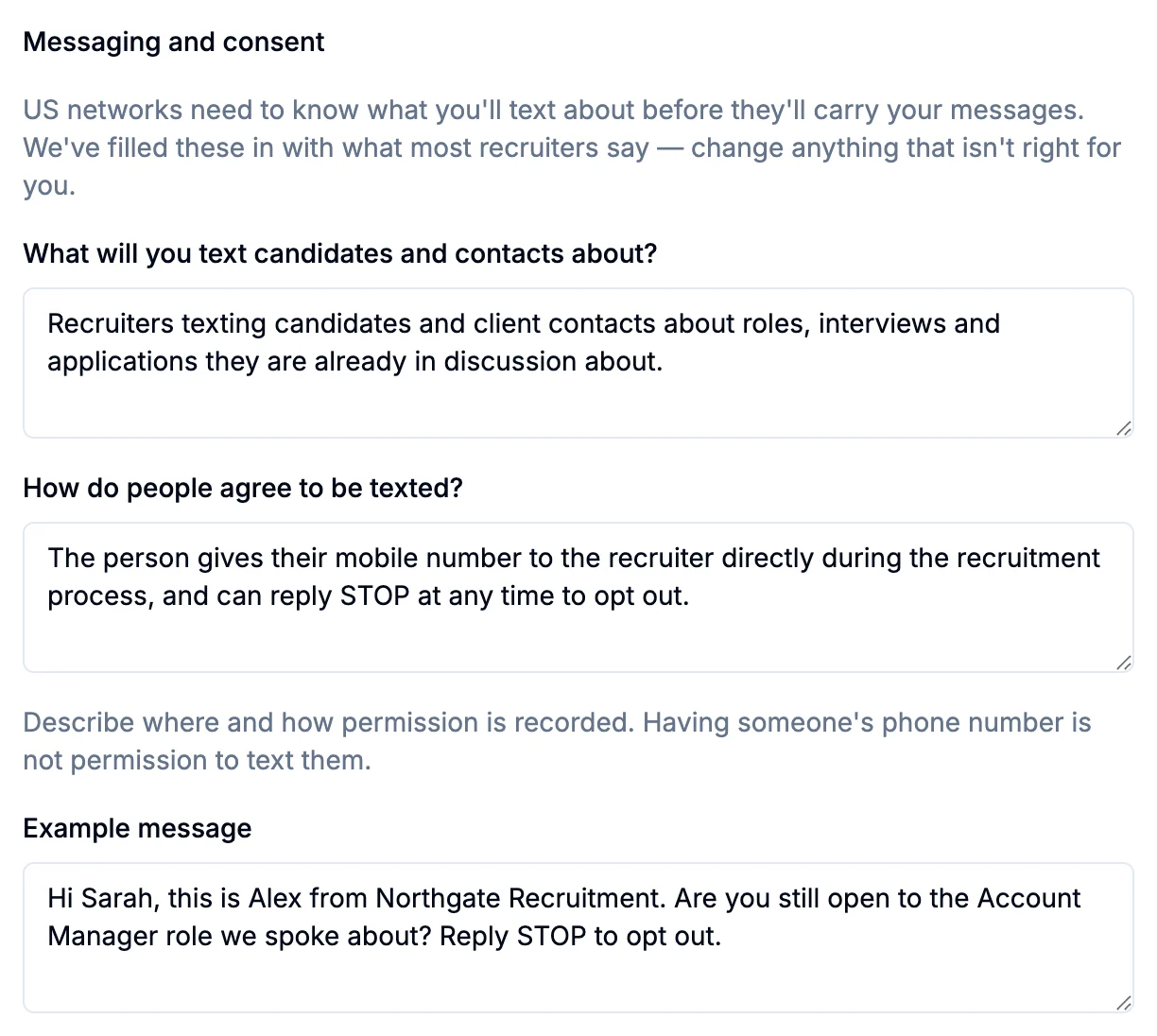
If you're adding a US number, check Messaging and consent. US networks
need to know what you'll text about and how people agree to it. We fill this in with
what most recruiters say; change anything that isn't right for you.
-
Under Your number, give each number a name your team will recognise
and choose its country. Pick Shared workspace number for one number
the whole team uses, or Dedicated recruiter number for a number that
belongs to one recruiter. One number per country is included.
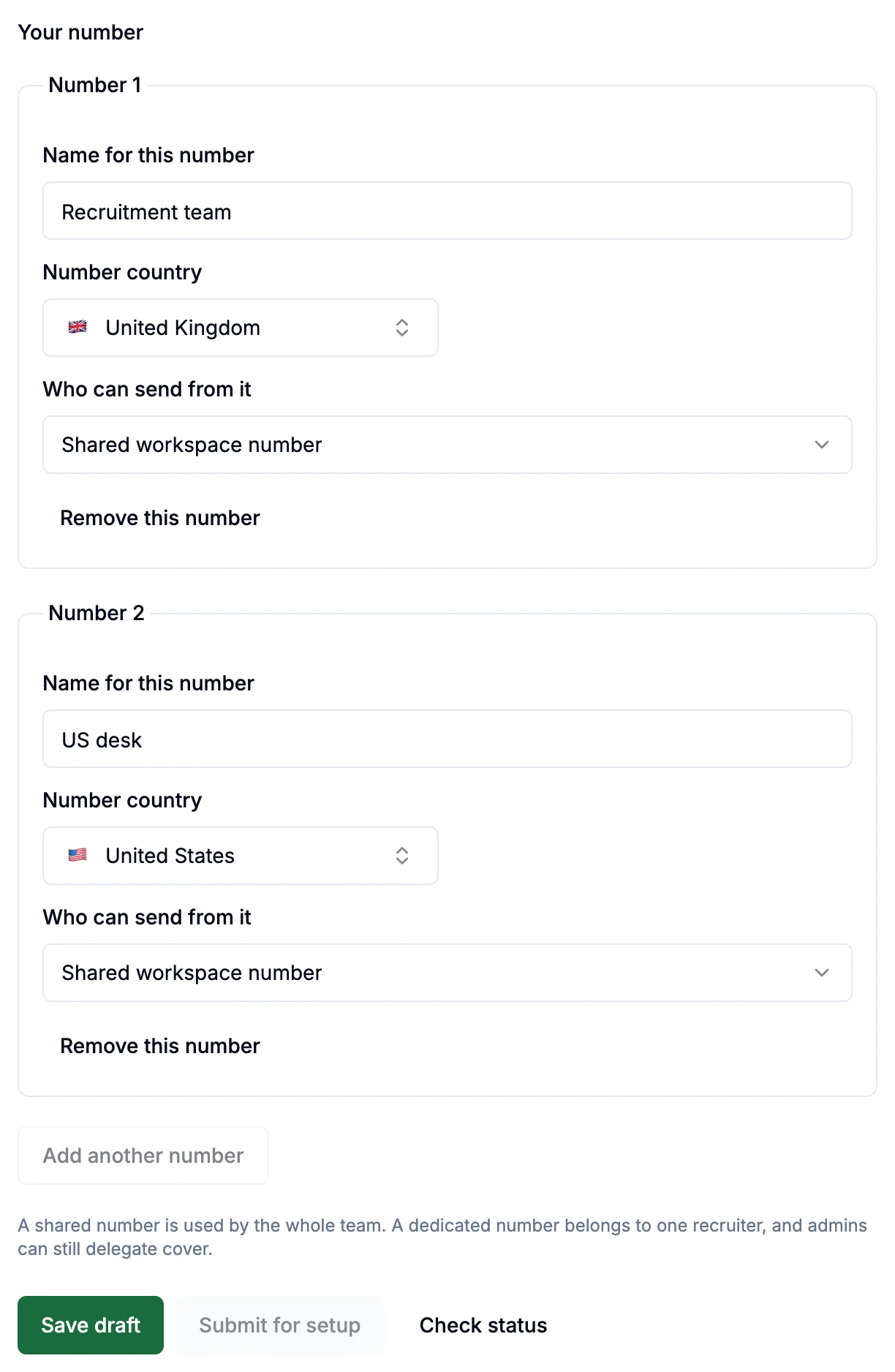
- Click Save draft, then Submit for setup.
- The workspace owner confirms. Within a few minutes the owner sees "Everything is ready. Confirm SMS for your workspace to switch it on." in the SMS settings. They click Show me, then Confirm and set up SMS.
That's everything you need to do. The rest happens on its own.
3. How long it takes #
From the moment you submit, setup runs by itself apart from one click from the owner. You don't need to keep Shortlists open, and we email your admins when each number is ready.
-
You submit, and we work out the costs A few minutes
We also check what each country you chose asks for.
-
The owner confirms One click
Nothing is registered or bought until they do.
-
Your business is registered with the networks UK: usually within a working day US: usually 1 to 3 working days
Every country requires a business to be registered before networks will carry its texts. In the US the phone carriers review your business themselves, which is why it takes longer there.
-
Your number is set up and replies switched on A few minutes
We get the number and connect it, so replies reach you in Shortlists.
-
You get an email: "Your UK number is live" Sent to your admins
Recruiters can start texting straight away.
If you asked for a UK and a US number, the UK one is usually ready first. You can text UK candidates while the US review carries on, and we email you again when the US number is live.
3.1 What you see while you wait #
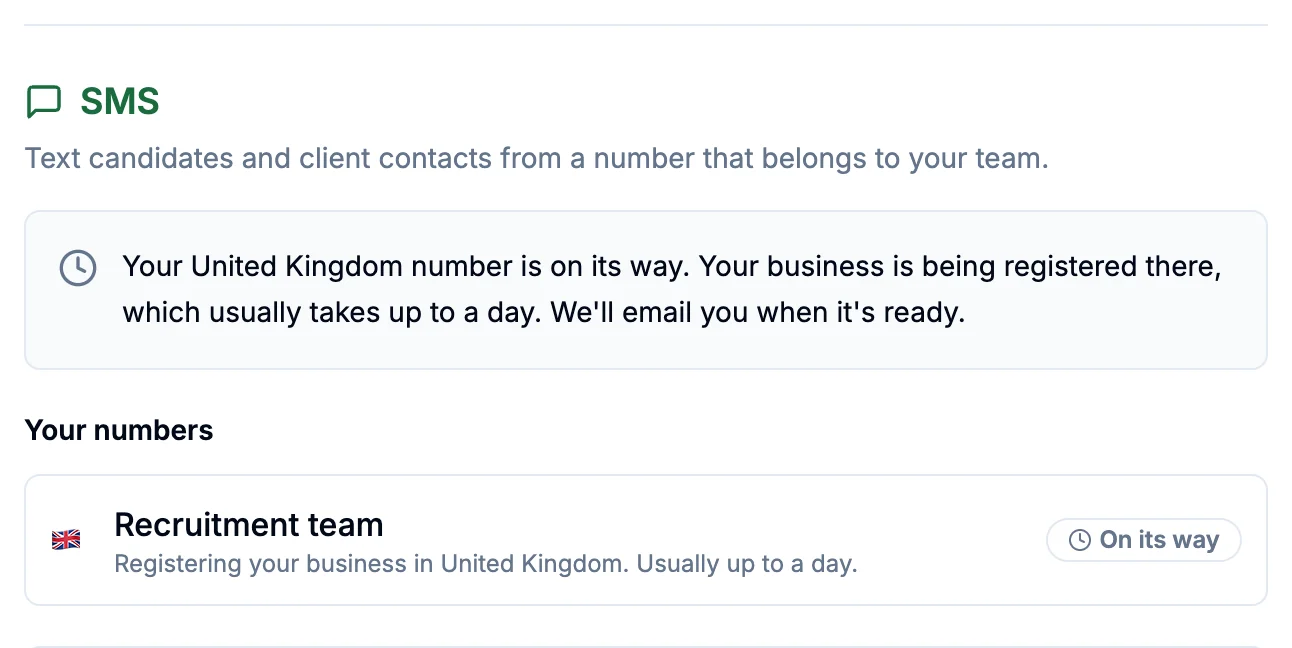
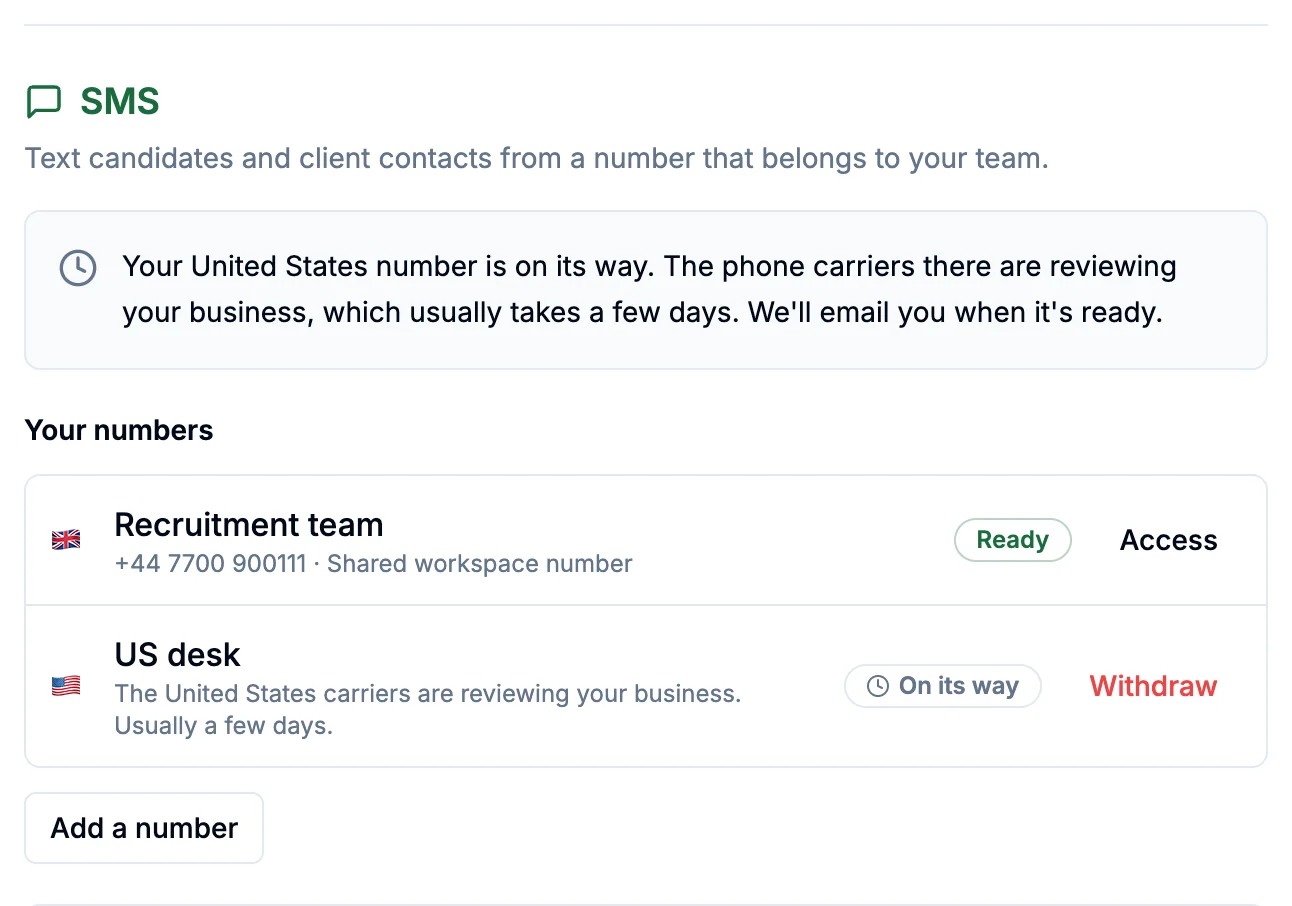
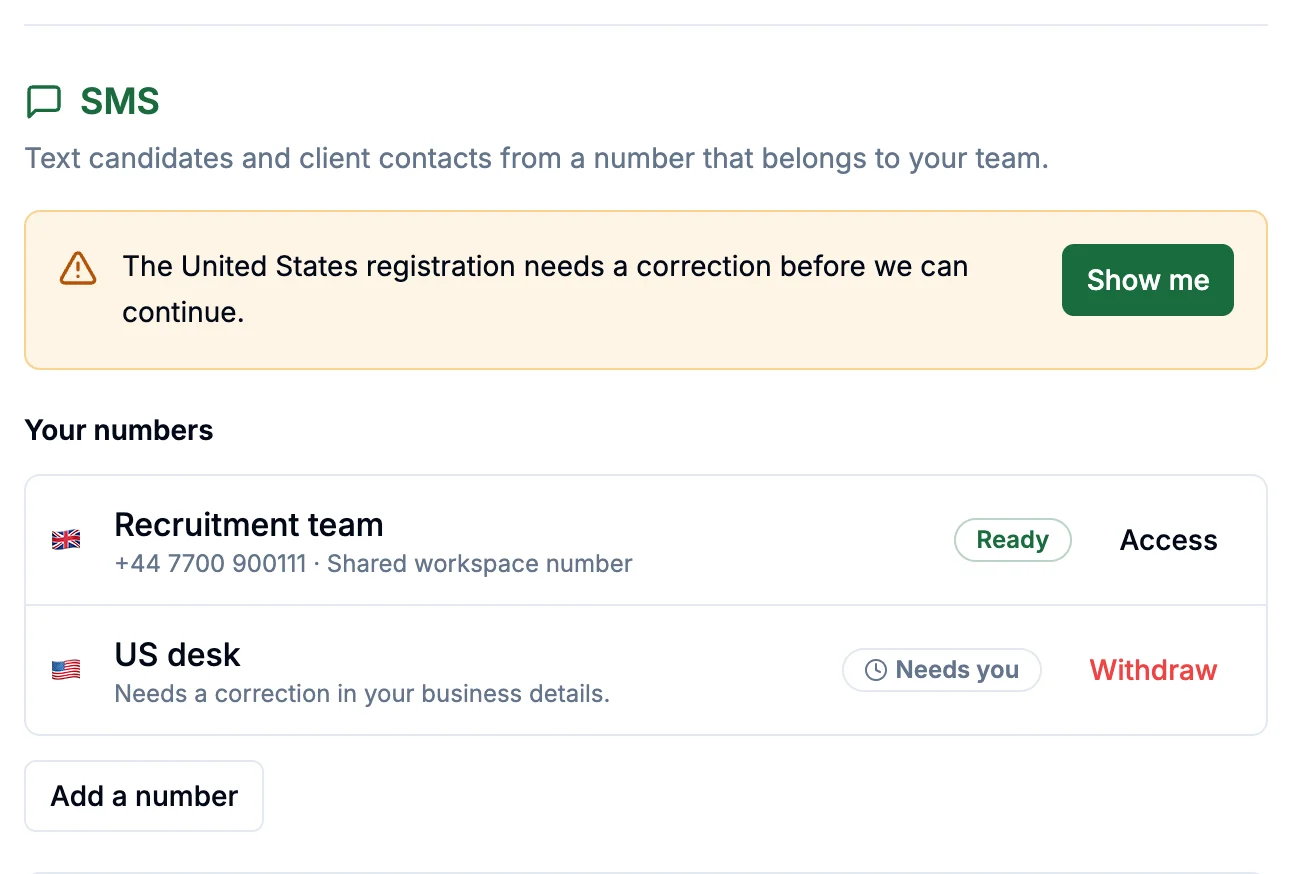
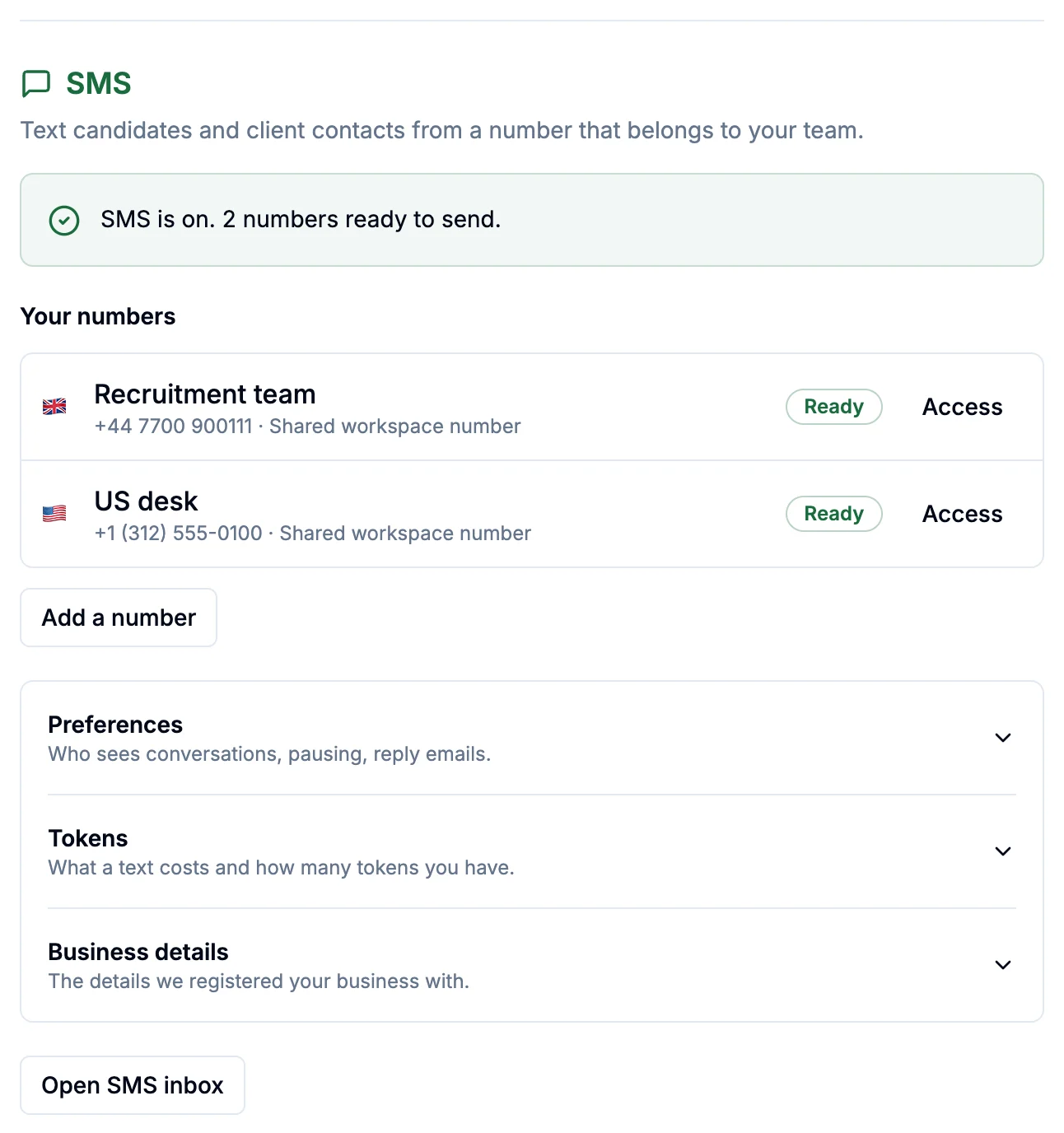
Account Settings → SMS always opens with one sentence saying where things are, and each number shows its status.
| Status | What it means |
|---|---|
| On its way | Normal. Nothing is needed from you. |
| Taking longer | The review is taking longer than usual (more than three working days). We're told automatically and chase it for you. Nothing is needed from you. |
| Needs you | Something in your registration needs correcting. Click Show me to see what. For a US number, fix the detail that's highlighted and submit again. For a UK number, email hi@shortlists.io and we'll sort it out with you. |
| Ready | The number can send and receive texts. |
4. Numbers and who can use them #
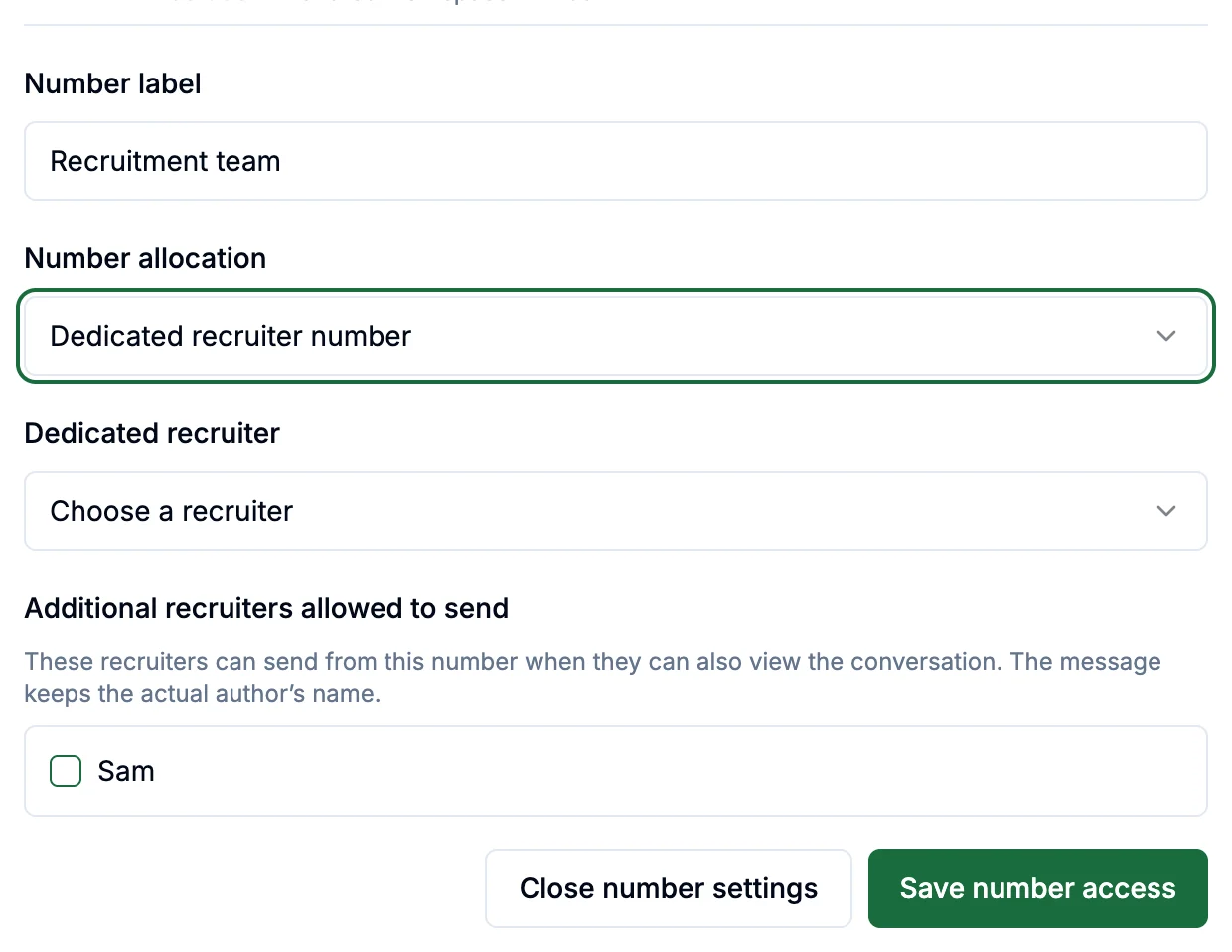
Every number is one of two kinds:
- Shared workspace number: the whole team sends from it. Good for a small team or a general recruitment line.
- Dedicated recruiter number: it belongs to one recruiter, so candidates always hear from the same number. You can let other recruiters send from it too, for example to cover holidays; their texts still show their own name in the conversation.
To change a number, an admin opens Account Settings → SMS and clicks Access next to it.
4.1 Adding a number #
For a second recruiter's own number, or a number in another country, the owner clicks Add a number in the SMS settings.
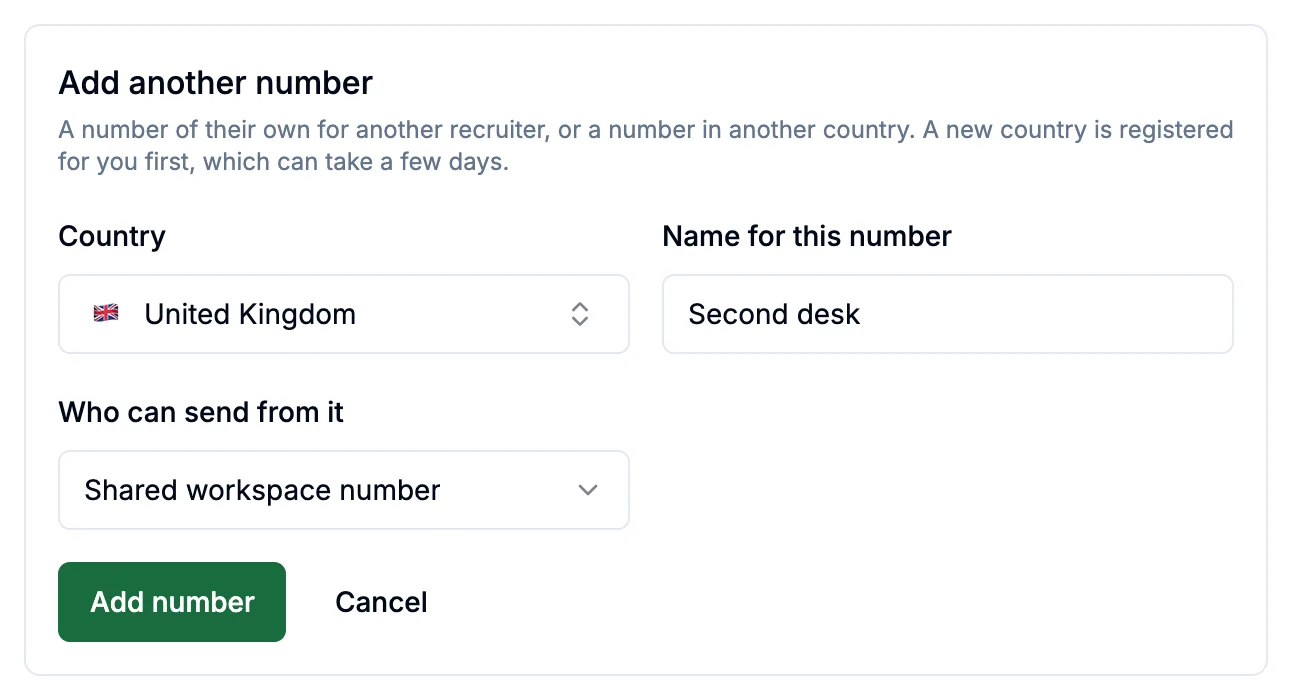
- Extra numbers are a monthly add-on to your subscription. The price is shown before you add one.
- A number in a new country goes through that country's registration first (see How long it takes), and we email you when it's ready.
- Until the number exists you can Withdraw the request, and nothing is billed.
4.2 Removing a number #
The owner can remove a number in the SMS settings. It stops working straight away and comes off your bill. Past conversations stay in the inbox, but nobody can text from that number again.
5. Sending a text #
- Open the candidate or client contact and go to the Messaging tab, then SMS.
- Click Start SMS conversation, choose which of their numbers to text and which of your numbers to send from, then click Start SMS conversation again.
- Write your message, or use Templates, Placeholder to drop in details like their name, or Write with AI.
- Check the message preview, then click Send SMS or press Enter.
5.1 Message length #
One text holds 160 characters, including the opt-out line when it's added. Longer messages are sent as several texts joined together, and the preview tells you how many ("Charged as 2 texts"). An emoji or special character cuts each text to 70 characters, so a single emoji can double the cost. The longest message you can send is 1,600 characters.
5.2 Texting someone in the US #
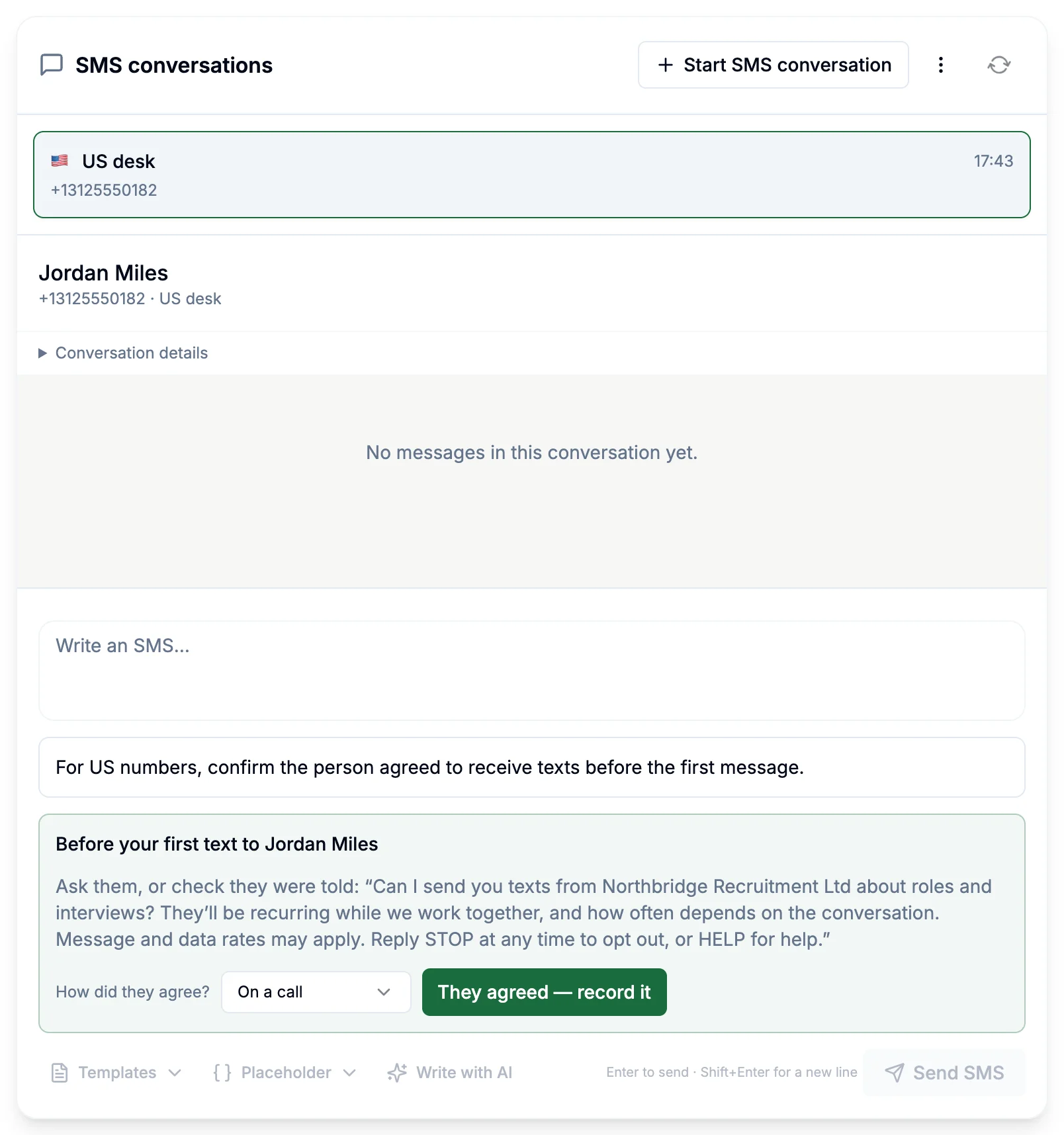
US rules ask you to confirm that a person agreed to receive texts before you first text them. Shortlists asks you once per person: read them the suggested wording or check they were told, choose how they agreed, then click They agreed — record it.
5.3 Delivery status #
Each text in a conversation shows its status, such as Delivered or Not delivered. Delivered means it reached their phone, not that they've read it. If a text isn't delivered, the conversation says why, for example a landline or a phone that's switched off.
6. Replies and the SMS inbox #
Replies appear in the conversation on the person's record and in the SMS inbox: in the left-hand menu, open Outbound, then SMS inbox.
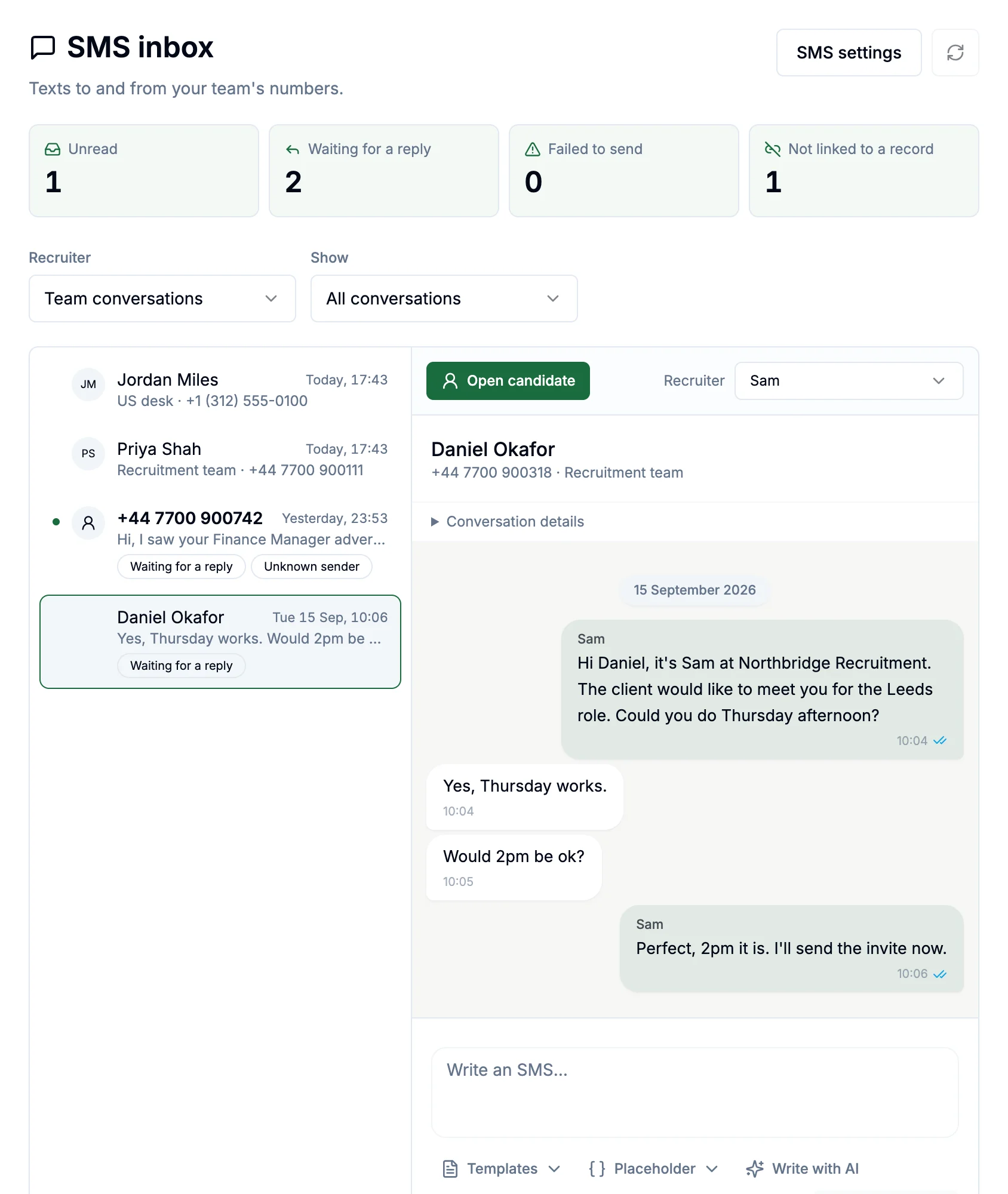
- Whoever handles a conversation is emailed when a reply arrives, at most once every 30 minutes per conversation.
- A text from a number that isn't on any record shows as Unknown sender. Open it and choose Link to a record once you know who it is.
- An admin can reassign a conversation to another recruiter from the conversation itself.
6.1 Inbox preferences #
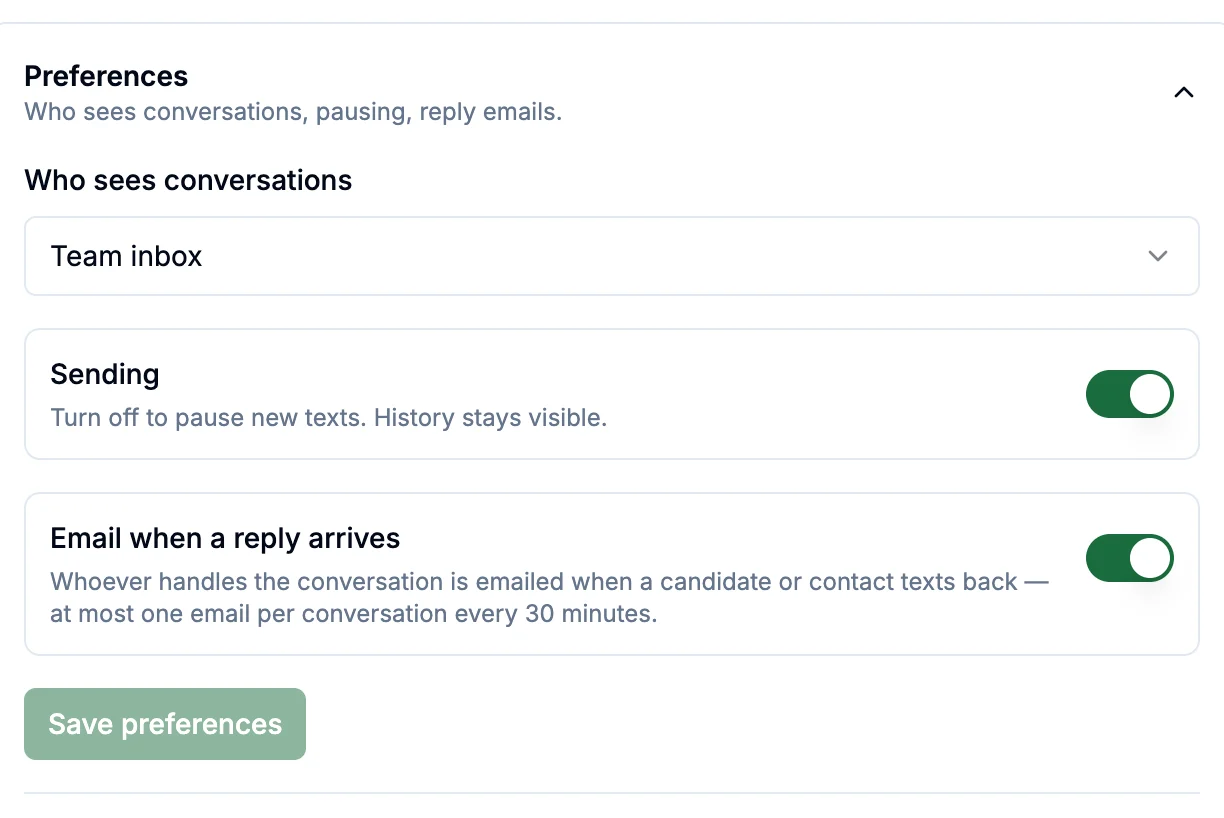
Admins set these under Account Settings → SMS → Preferences:
- Who sees conversations: Team inbox shows everyone every conversation; Assigned conversations only shows recruiters the conversations assigned to them.
- Sending: switch off to pause new texts. The history stays visible.
- Email when a reply arrives: switch reply emails on or off.
7. What it costs #
- SMS is included in your plan, and one number per country you choose at setup is covered.
- Texts use tokens from your workspace's balance, the same tokens as everything else in Shortlists. You'll find what a text costs under Account Settings → SMS → Tokens.
- Extra numbers are a monthly add-on to your subscription.
- The SMS panel warns you when you have fewer than five texts' worth of tokens left. If there aren't enough for a text, it isn't sent; the owner or an admin can buy more under Usage and tokens.
- If your Shortlists subscription lapses, SMS pauses. Your numbers are kept for 30 days; after that they're released and can't be recovered.
8. Troubleshooting #
| What you see | What to do |
|---|---|
| You need a US number to text this person. | Their mobile is in the US and your workspace has no US number. An admin can add one; see Adding a number. |
| Shortlists doesn't send texts to [country]. | We don't text that country yet. Use email or WhatsApp. |
| Add a valid mobile number with a country code to this record. | Edit the record and save their mobile with its + country code. |
| They replied STOP, so we cannot text them. | They opted out. Only they can opt back in, by replying START. |
| That looks like a landline. | Landlines can't receive texts. Call or email instead. |
| Their network filtered the message. | Shorter, plainer wording usually gets through. |
| Not enough tokens to send this text. | Buy more tokens under Usage and tokens, or ask your owner. |
| Your workspace has paused outgoing SMS. | An admin switched Sending off. Turn it back on under Preferences. |
| SMS is paused because the workspace's subscription has lapsed. | The owner updates the payment details; SMS switches back on by itself. |
9. Common questions #
Can I text from my own mobile number? #
No. Texts go from your team's Shortlists number, so replies come back into Shortlists and stay with the business.
Do candidates see my name? #
They see the number, and the opt-out line names your business. Inside Shortlists, every message shows which recruiter sent it.
Can candidates send photos? #
Shortlists shows the text of a message. Pictures can't be displayed.
What happens to conversations when a recruiter leaves? #
They stay in the workspace. An admin can reassign them, and can move a dedicated number to someone else under Access.
How do I export or erase someone's text history? #
Open the menu (⋮) in the SMS panel on their record. Anyone can export the messages they can see; only admins can erase a history.
Something not covered here? #
Email hi@shortlists.io and we'll help, and add the answer to this guide.